Loyalty card guide
Store Cards – Cardholder for Loyalty Cards: Store Your Cards on iPhone
A digital cardholder for loyalty cards gives your store cards one organized place on your iPhone, so you can find the right card faster at checkout.
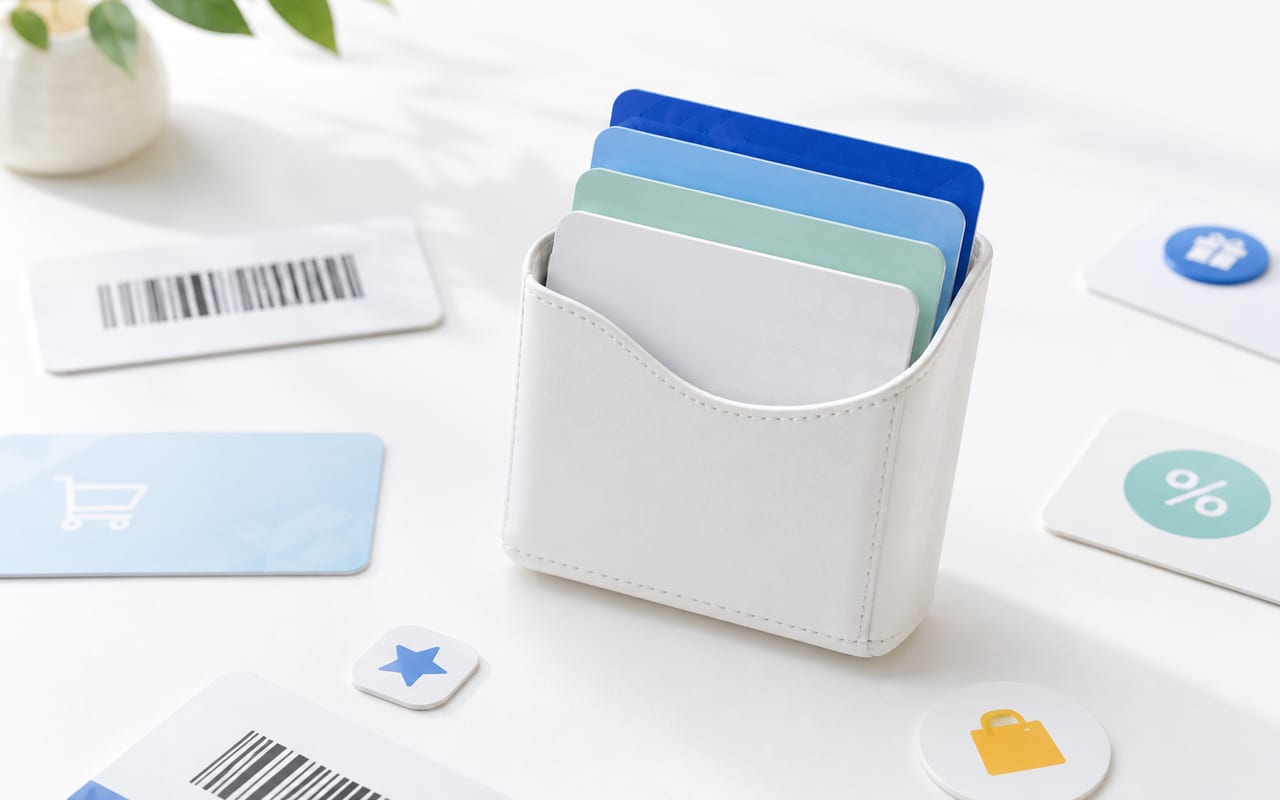
Most people do not need a new wallet philosophy. They need the right loyalty card to appear when the cashier asks for it. That is where the usual systems break down: one card is plastic, one is a screenshot, one is inside a retailer app, and another was left in a different bag.
A cardholder for loyalty cards can be physical or digital. The useful question is not which one sounds cleaner. It is where each card will be easiest to use at checkout, at the gym desk, at the library, or anywhere else you need to show it.
Start with what the card is for
Before adding every card to every app, sort each card by job:
- If the store gives you a real "Add to Apple Wallet" pass, use Apple Wallet.
- If the retailer app handles coupons, prescriptions, mobile orders, returns, or points balances, keep that app.
- If the card is mainly a barcode, QR code, membership number, or card image you need to show, put it in a dedicated cardholder.
- If the card is expired, duplicated, or tied to a store you no longer visit, delete it instead of digitizing it.
That gives you a smaller system. A digital cardholder should not become a second junk drawer.
What a loyalty cardholder actually does
A physical cardholder keeps plastic cards together. That can work if you carry the same wallet every day and only have a few cards.
A digital cardholder keeps the useful parts of the card on your phone: the barcode, QR code, membership number, card image, or saved details. It is for cards you need to show or reference, not for payments.
The best setup is often mixed. Apple Wallet is good for supported passes. Retailer apps are good when the app has account features. A cardholder app is good for the leftover pile of useful cards that do not fit neatly anywhere else.
The main ways to store loyalty cards
| Method | Use it when | Watch for |
|---|---|---|
| Physical cardholder | You carry the same wallet and only need a small set of cards. | It still adds bulk, and it is easy to leave behind. |
| Screenshots in Photos | You need a quick backup for one card today. | Screenshots are hard to name, group, update, and find under pressure. |
| Apple Wallet | The merchant provides a Wallet pass for the card. | A plastic barcode card is not automatically a Wallet pass. |
| Retailer app | You use coupons, account tools, receipts, prescriptions, or mobile orders. | Installing an app for every store can make checkout slower, not faster. |
| Store Cards | You want one place for cards you mainly need to show or reference. | You still need to add the cards once and test must-have barcodes in store. |
Why screenshots are only a backup
A screenshot is fine when you need to save one barcode quickly. It is a poor long-term card system.
Photos does not give you a checkout-ready card list. Similar barcode screenshots start to look the same, old copies stay beside new copies, and the image you need can end up between receipts, delivery confirmations, and old screen captures.
If you have more than a few cards, use screenshots as a fallback, not as the place where your loyalty cards live.
When Apple Wallet is enough, and when it is not
Apple Wallet is the right answer when the store, airline, venue, or issuer provides a supported Wallet pass. Wallet passes can include loyalty points, coffee card balances, coupons, boarding information, and barcodes or QR codes that can be presented to a reader.
The catch: you usually cannot take any plastic loyalty card with a barcode and force it into Apple Wallet. The merchant has to provide the pass.
Use Apple Wallet for supported passes. Use a cardholder app for cards that still matter but do not have a Wallet option.
Where Store Cards fits
Store Cards fits the middle ground: cards you want on your iPhone, but do not need a full retailer app for. That can include supermarket cards, pharmacy reward cards, coffee cards, gym or club memberships, library cards, local shop cards, passes, and card-style documents.
It is for organization, not payment. It also does not replace a retailer app when that app is where you clip coupons, manage prescriptions, check order status, or change account settings.
Use it for the cards that would otherwise sit in your wallet, camera roll, desk drawer, or keychain.
How to move cards safely
Do not digitize everything in one sitting. Start with the cards that regularly slow you down.
- Empty the wallet first. Put cards into three piles: use often, use sometimes, do not use.
- Add the weekly cards. Grocery, pharmacy, coffee, fuel, gym, and local store cards usually give the fastest payoff.
- Save the number too. If a cashier has to type the member ID, the barcode alone is not enough.
- Test before you stop carrying plastic. Screen brightness, glare, barcode type, and scanner hardware can all affect checkout.
- Keep one backup pile at home. Once a card works reliably from your phone, you can stop carrying the plastic version every day.
When not to use a cardholder app
A dedicated cardholder is not always necessary. You may not need one if:
- you only use one or two cards, and both already work well in Apple Wallet;
- the retailer app is required for coupons, returns, prescriptions, or account tools;
- the store requires the original physical card;
- the card contains sensitive health, identity, payment, or security information;
- you have not used the card in a year.
A loyalty cardholder should reduce clutter. If it turns into a museum of cards you never use, clean it out.
A privacy check before you add cards
Loyalty cards are not payment cards, but they can still connect to personal information: your name, phone number, email, account history, shopping patterns, or rewards balance.
Review the app permissions, keep your phone locked, and avoid storing payment card numbers, passwords, government IDs, health records, or other sensitive documents in a loyalty cardholder unless the app is specifically built for that use.
FAQ
What is the best cardholder for loyalty cards on iPhone?
The best setup depends on the card. Use Apple Wallet when the store gives you a real Wallet pass, keep retailer apps when they handle coupons or account features, and use a dedicated cardholder app for cards you mainly need to show or reference at checkout.
Can I store loyalty cards on my iPhone without Apple Wallet?
Yes. Apple Wallet is useful for supported passes, but many ordinary plastic cards are not issued as Wallet passes. A cardholder app can keep the barcode, membership number, card image, or useful card details available on your iPhone.
Are screenshots good enough for loyalty cards?
Screenshots are fine as an emergency backup for one card. They become annoying when you have several cards because they are hard to name, group, update, or find quickly in Photos.
Do I still need retailer apps?
Sometimes. Keep retailer apps when you use them for digital coupons, prescriptions, order history, points balances, mobile ordering, returns, or personalized offers. Use a cardholder app for cards you mostly need to present at checkout.
Should I keep the physical loyalty card?
Keep the physical card until you have tested the digital version in store. Some checkout scanners struggle with phone screens, and some stores may ask for the original card or a manually entered membership number.
Can I digitize loyalty cards without barcodes?
Yes, if the app lets you save card details or a membership number. A non-barcode card may still be useful if you need to show a member ID, read a number to a cashier, or keep a card-style document handy.
What should I not store in a loyalty cardholder app?
Do not treat a loyalty cardholder as a place for payment card numbers, passwords, government IDs, health records, or other sensitive documents unless the app is specifically built and trusted for that purpose.
Will every store scan a digital loyalty card from an iPhone?
Most modern barcode scanners can read many codes from phone screens, but results can vary by store, barcode type, screen brightness, and scanner hardware. Test must-have cards before leaving the physical card at home permanently.
Start with the cards you actually use
The fastest cleanup is small: add the grocery card, pharmacy card, coffee card, gym card, or local store card you reach for every week. Test those first before moving the rest.
Store Cards can be the main list for the loyalty cards, store cards, membership cards, passes, and card-style documents that do not belong in Apple Wallet or a retailer app.
Download Store Cards from the App Store and keep the cards you actually use ready for checkout.