Apple Wallet guide
How to Add a Card to Apple Wallet
Want to know how to add a card to Apple Wallet? The answer depends on the type of card.
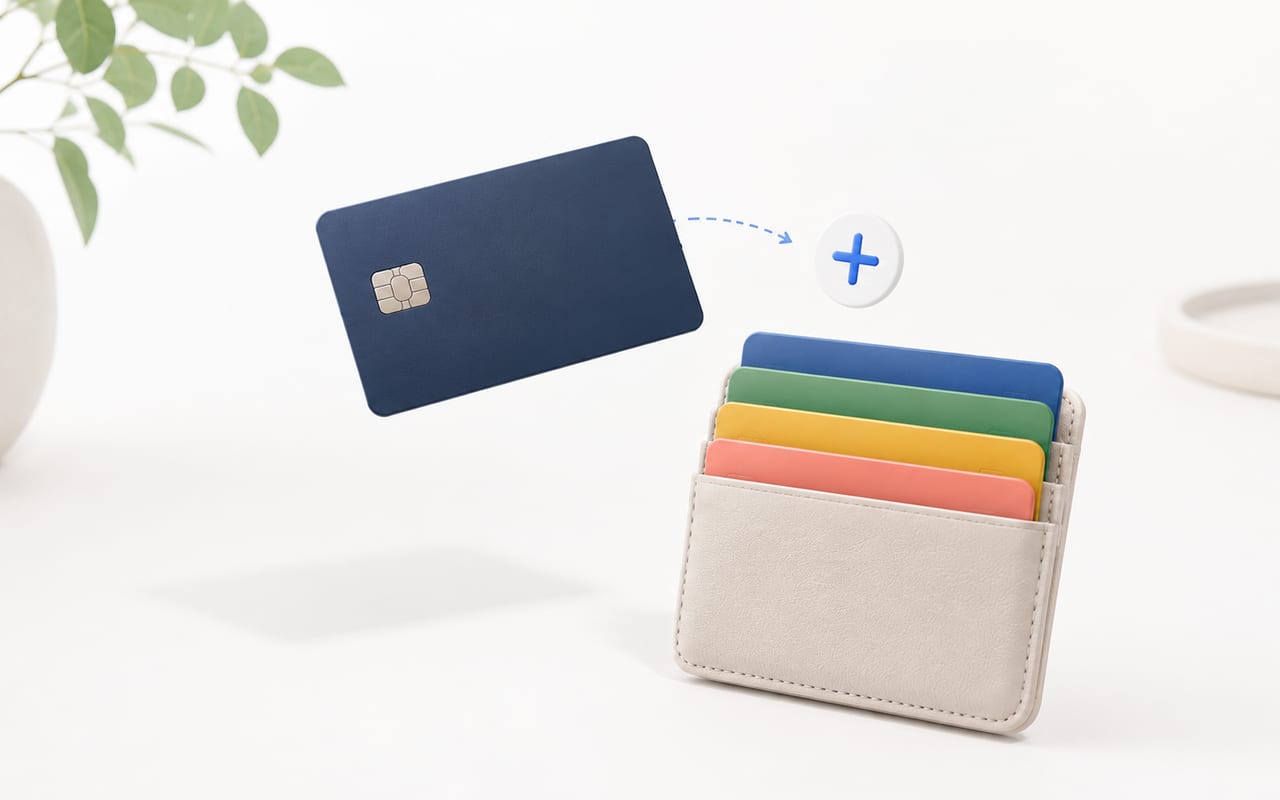
Apple Wallet can store eligible payment cards and official Wallet passes, including some transit cards, tickets, coupons, rewards cards, loyalty cards, gift cards, keys, IDs, and more.
The important limit is simple: Apple Wallet is not a universal card importer. A physical loyalty card, store card, barcode, QR code, gift card, or membership card usually needs merchant or issuer support before it can be added directly to Wallet.
If a store card has a barcode or QR code but no official Wallet option, Store Cards can be the practical fallback: scan the code, import a photo of the card, organize it on iPhone, and move it to Apple Wallet when the code type supports that export.
Quick answer: how do I add a card to Apple Wallet?
For a payment card, open the Wallet app, tap Add Card, choose Debit or Credit Card, and follow the issuer verification steps. The card must be supported by a participating issuer.
For a loyalty card, store card, ticket, coupon, gift card, or membership pass, look for an “Add to Apple Wallet” button in the issuer’s app, website, email, notification, QR code, barcode, AirDrop share, or checkout flow. If the button is missing, Apple says to contact the merchant or company to confirm whether they support Wallet passes.
If the card has a barcode or QR code but the merchant does not support Apple Wallet, use Store Cards to keep the code ready on your iPhone instead.
Which method should I use?
- You want to pay with the card: use the Wallet app and Apple Pay setup.
- You see “Add to Apple Wallet”: tap it and add the official pass.
- You have a store or loyalty barcode/QR with no Wallet button: add it to Store Cards.
- You only have a photo of the card: import the photo in Store Cards; if the code is recognized and supported, Store Cards can create a card you can use in the app and move to Apple Wallet.
- The card has no barcode or QR code: check the issuer’s app or website. Without a scannable code or official Wallet pass, there may be nothing for Wallet or Store Cards to present at checkout.
What can Apple Wallet add directly?
Payment cards
Payment cards include eligible credit, debit, and prepaid cards that can be used with Apple Pay. To set up Apple Pay, Apple says you need a compatible device, a supported card from a participating card issuer, an Apple Account signed in on your device, and Face ID, Touch ID, Optic ID, or a passcode.
This is different from adding a loyalty pass. A payment card is used to pay. A loyalty card or rewards pass is used to identify your account, collect points, redeem rewards, or show a membership code.
Official Wallet passes
Airlines, venues, stores, transit networks, membership programs, and other issuers may provide Wallet passes. These can include tickets, boarding passes, loyalty cards, rewards cards, coupons, gift cards, transit cards, and membership passes.
Barcode and QR passes
Apple Wallet can display barcodes and QR codes inside supported passes. That does not mean you can scan any plastic card barcode and manually create a Wallet pass. The merchant or issuer still needs to provide Wallet support.
How to add a supported card or pass to Apple Wallet
Use Apple Wallet directly when the card or pass is supported by the bank, merchant, issuer, app, or website.
1. Add a card from the Wallet app (for payment cards only)
- Open the Wallet app on your iPhone.
- Tap the Add Card button.
- Choose Debit or Credit Card.
- Tap Continue.
- Add the card by tapping or holding it close to your iPhone, scanning it, or entering card details manually.
- Complete any issuer verification steps.
Apple notes that some banks or card issuers may require extra authentication or ask you to download an app before approving the card for Apple Pay.
2. Add a supported pass from the issuer
For loyalty cards, rewards cards, store cards, tickets, coupons, and membership passes, look for the Wallet button in places like:
- the issuer’s official app or account page;
- an email, Messages thread, notification, or order confirmation;
- a ticket, gift card, rewards, or membership screen;
- a QR code, barcode, AirDrop share, or participating merchant checkout flow.
If you do not see “Add to Apple Wallet”, the issuer may not support Wallet for that card. A barcode image by itself is not the same as a Wallet pass.
What if Apple Wallet does not support your store card?
If the store has no Wallet button, no app integration, and no Wallet-compatible QR code, you probably cannot add that card directly to Apple Wallet. If the card has a barcode or QR code, you can still keep it on your iPhone with Store Cards.
Store Cards is not an Apple product, not a payment-card replacement, and not an official issuer pass. Its job is simpler: help you organize store, loyalty, rewards, discount, and gift cards with supported barcodes or QR codes when Apple Wallet is not offered.
How to use Store Cards for unsupported cards
Use Store Cards for loyalty, store, rewards, discount, and gift cards that have a barcode or QR code but do not provide an official Apple Wallet pass.
- Download Store Cards
Install Store Cards on your iPhone from the App Store. - Add the card
Scan the barcode or QR code, or import a photo of the card. If the photo contains a supported code, Store Cards can create a card in the app. - Move it to Apple Wallet when supported
If the code type supports Wallet export, you can move the card from Store Cards to Apple Wallet. - Use it at checkout
Open the card and present the barcode or QR code to the cashier or scanner.
What Store Cards does and does not do
Store Cards can help with
- unsupported store, loyalty, rewards, discount, and gift cards with barcodes or QR codes;
- importing a photo of a card and creating a card when the code type is supported;
- keeping many store cards together instead of searching through photos, emails, or plastic cards;
- moving a card to Apple Wallet when the code type supports Wallet export.
Store Cards does not
- replace Apple Pay or add bank cards for payment;
- turn every card into an official issuer-provided Wallet pass;
- make a merchant accept a card they would not normally accept;
- create a scannable checkout code when the card has no barcode or QR code.
Apple Wallet vs Store Cards
| Need | Store Cards | Apple Wallet |
|---|---|---|
| Keep a store card with a barcode or QR code | Built for organizing unsupported store, loyalty, rewards, discount, and gift card codes on iPhone | Works when the merchant or issuer provides a supported Wallet pass |
| Import a photo of a card | Can create a card from a photo when the barcode or QR code type is supported | Does not turn an ordinary card photo into a Wallet pass by itself |
| Move a code card to Apple Wallet | Can move cards to Apple Wallet when the code type supports Wallet export | Receives the pass or card only when the format is supported |
| Add eligible credit or debit cards for payments | Not a payment-card or Apple Pay replacement | Supports eligible payment cards from participating issuers for Apple Pay |
| Use a card with no barcode or QR code | Cannot create a scannable checkout code if the card does not have one | Needs an official Wallet pass or issuer-supported digital card |
| Organize many store, loyalty, discount, and rewards cards | Designed around larger collections of barcode and QR store cards | Keeps eligible cards and passes in Wallet when they are supported |
| Requires merchant or issuer support | No official Wallet support required to organize supported barcode or QR cards in the app | Requires a supported issuer or merchant for official Wallet passes |
Troubleshooting
I do not see “Add to Apple Wallet”
The issuer may not support Apple Wallet for that card. Apple says to contact the merchant or company that issued the pass if you do not see the Wallet option.
Also check the official app, account page, confirmation email, ticket screen, or rewards section. If there is still no Wallet option but the card has a barcode or QR code, add it to Store Cards instead.
My loyalty card barcode will not scan
Try better lighting, a cleaner card, or a sharper photo. Apple Wallet generally needs a supported pass from the issuer; it is not a universal barcode importer.
If Store Cards cannot read the barcode or QR code from the card or photo, you may need the store’s official app, website account, or physical card.
The store does not support Apple Wallet
Use the store’s own app if it has one. If the store does not offer a useful app or Wallet support, use Store Cards for cards with supported barcodes or QR codes. If the card has no scannable code, keep the physical card or issuer-provided details available separately.
Can I add any card manually to Apple Wallet?
No. You cannot manually add any card directly to Apple Wallet. You can manually enter eligible payment card details for Apple Pay, but that is different from creating a loyalty card, barcode card, QR code card, gift card, or membership pass. If the card is not supported by Wallet but has a supported code, add it in Store Cards.
Can I add a photo of a card to Apple Wallet?
Not directly. A photo in your Photos app is not the same as an Apple Wallet pass. Store Cards can import a card photo, create a card in the app when the code type is supported, and then move it to Apple Wallet when that code type supports Wallet export.
If the photo does not contain a readable barcode or QR code, there may be no scannable card for either app to present.
Can I use Store Cards instead?
Yes, for organizing loyalty cards, store cards, rewards cards, discount cards, and gift cards with supported barcodes or QR codes. Store Cards is especially useful when the merchant does not provide an official Apple Wallet pass.
Is this the same as Apple Pay?
No. Apple Pay is for payments. Apple Wallet is the app where eligible payment cards, passes, tickets, rewards cards, IDs, keys, and more can be stored. Apple explains that Apple Pay is a way to pay, while Apple Wallet is where you store cards for use with Apple Pay.
FAQ
Can I add any loyalty card to Apple Wallet?
No. You can add a loyalty card to Apple Wallet only when the merchant or issuer supports Wallet. Look for “Add to Apple Wallet” in the store’s app, website, email, message, QR code, or account page. If the option is missing and the card has a barcode or QR code, you can use Store Cards to keep it organized on your iPhone instead.
How do I add a store card to Apple Wallet?
Open the store’s official app or website, sign in to your account, find your store card or rewards card, and look for “Add to Apple Wallet.” Tap it and follow the on-screen steps. If there is no Wallet option and the card has a barcode or QR code, use Store Cards to organize it instead.
Why can’t I add my rewards card to Apple Wallet?
The most common reason is that the rewards program does not issue Apple Wallet passes. A barcode alone is not enough for Apple Wallet. The issuer must provide a supported pass through an app, website, email, QR code, barcode, AirDrop share, or participating merchant.
Can I add a barcode card to Apple Wallet?
Only if the barcode is part of a supported Apple Wallet pass. Apple Wallet can present passes with barcodes or QR codes, but it is not a universal barcode importer. If you need to keep a barcode card that Apple Wallet does not support, you can import or scan it in Store Cards instead.
Can I add a gift card to Apple Wallet?
Sometimes. A gift card can be added to Apple Wallet only if the issuer provides a Wallet-compatible pass or supported payment-style card. If a retail gift card only has a barcode or QR code and no Wallet support, Store Cards may be useful for organizing that code on your iPhone.
What is the best way to store loyalty cards on iPhone?
Use Apple Wallet for loyalty cards that officially support Wallet. For loyalty, store, rewards, discount, or gift cards with barcodes or QR codes that do not support Wallet, use Store Cards to organize them on your iPhone.
Is Store Cards an alternative to Apple Wallet?
Store Cards can be an alternative for organizing loyalty and store cards that Apple Wallet does not support. It is not an Apple product and it does not replace Apple Pay. It is a dedicated card manager for keeping supported barcodes and QR codes organized.
Is Apple Wallet the same as Apple Pay?
No. Apple Wallet is the app that stores eligible cards and passes. Apple Pay is Apple’s payment service for making purchases with supported payment cards. A loyalty card in Wallet is not the same as a payment card used with Apple Pay.
Can I use loyalty cards on Apple Watch?
Some Wallet passes can be used on Apple Watch. Apple says tickets and passes added to Wallet on iPhone are automatically added to the Wallet app on a paired Apple Watch. Whether a specific loyalty card works depends on the merchant, pass type, and device setup.
What should I do with cards that have no barcode?
If the card has no barcode or QR code, there may be no scannable code for Apple Wallet or Store Cards to present at checkout. Check whether the issuer offers an official app, website account, digital membership card, or Wallet-compatible pass. If not, keep the physical card or issuer-provided details separately.
Conclusion
The direct way to add a card to Apple Wallet is straightforward when the card is supported: use the Wallet app for eligible payment cards, or tap “Add to Apple Wallet” from the issuer’s app, website, email, QR code, barcode, notification, AirDrop share, or checkout flow.
If your store, loyalty, rewards, discount, or gift card does not show a Wallet option, Apple Wallet may not be supported for that card. A barcode or QR code alone does not change that.
For unsupported cards with a barcode or QR code, Store Cards gives you a practical iPhone home for those cards. Scan the code, import a photo when needed, and move the card to Apple Wallet when the code type supports it.