Loyalty card scanner guide
Store Cards – Cards Scanner for Loyalty Cards: Save Cards on Your Phone
Use this guide to decide which loyalty cards are worth saving on your phone, when a scanned card is likely to work at checkout, and what to do when the barcode does not scan.
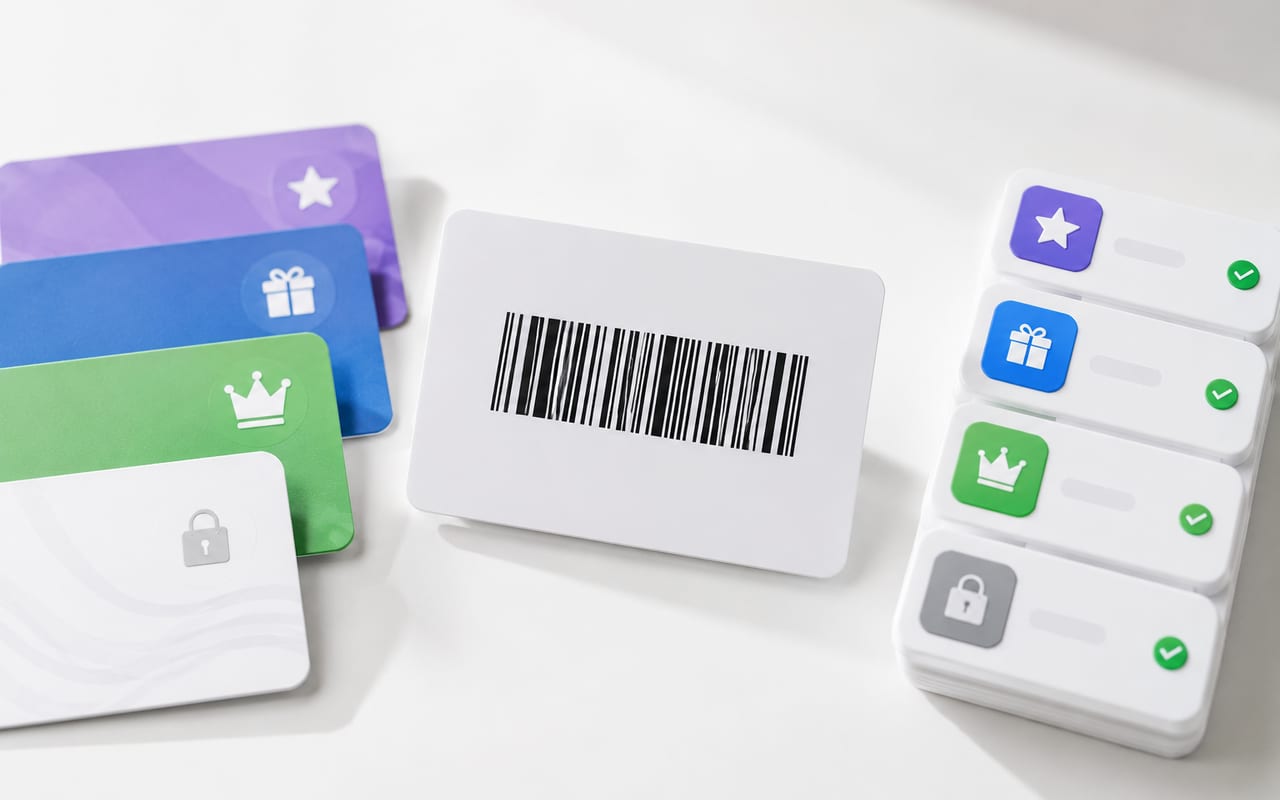
Most loyalty cards with a barcode, QR code, or membership number can be saved on a phone. That does not mean every store will accept the digital version. Checkout success depends on the store policy, scanner, barcode type, and whether staff can type the number if scanning fails.
The safest approach is boring, but it works: save the card, check the number, test it once in the store, and keep the plastic card until you know the digital version is accepted.
Store Cards is useful when you want one iPhone place for everyday loyalty cards instead of a wallet full of plastic cards or a folder full of retailer apps.
When a loyalty card scanner is worth using
A card scanner or digital cardholder is worth setting up when the same few cards slow you down in real life.
- You forget a grocery, pharmacy, coffee, gas, or pet-store card often enough to notice.
- You use three different store-specific apps and cannot remember which one has the rewards barcode.
- A cashier can use your member number, but the card or key tag is at home.
- You want to keep loyalty numbers for travel, hotels, airlines, or rental cars somewhere searchable.
It is less useful for a store where the official app controls coupons, prescriptions, mobile ordering, or account changes. In that case, keep the retailer app and use a cardholder only for quick lookup.
What you can save from a loyalty card
A loyalty-card app usually saves the checkout identifier, not the whole loyalty account. That identifier might be a barcode, a QR code, a membership number, or a card image you can show to staff.
Barcode or QR code
Useful when the checkout scanner can read a code from a phone screen.
Membership number
Useful when staff can type the number or the kiosk accepts manual entry.
Official wallet pass
Best when the merchant provides an Apple Wallet or Google Wallet pass.
Retailer app card
Best when rewards, coupons, prescriptions, or mobile orders live inside the store app.
Apple Wallet supports eligible loyalty and rewards passes only when the merchant or issuer provides one. Google Wallet also supports many retail cards, with availability depending on country, device, merchant, and partner support. If Wallet support is your main question, see how to add a card to Apple Wallet. If you are choosing between screenshots, Wallet, retailer apps, and a dedicated app, start with the digital cardholder for loyalty cards guide.
How to scan loyalty cards to your phone
The exact buttons vary by app, but the workflow should stay simple.
Step 1: Start with the cards you use monthly
Do not digitize a drawer full of old plastic on day one. Start with five to ten cards that create real checkout friction: grocery, pharmacy, coffee, gas, pet store, or the local shop where you always forget the key tag.
Step 2: Add the card details
Scan the barcode or QR code if the app supports it. If the scan fails, type the membership number manually. If the program uses a store app or an official Wallet pass, use that path instead.
Step 3: Use a name you can recognize in a line
"Main Grocery" is more useful than "Rewards." "Gas Station" is more useful than a long account number. Checkout is the wrong place to decode your own labels.
Step 4: Check the saved number
Compare the saved number with the number printed on the card. This is worth doing for faded cards, small barcodes, glossy cards, and curved key tags.
Step 5: Test before you retire the plastic card
Open the card before you reach the front of the line. Increase screen brightness, hold the phone still, and keep the physical card nearby until the store has accepted the digital version at least once.
If the app cannot scan the card
Try again on a flat surface with bright, even light. Remove the card from a keyring if it bends. Wipe a glossy card if it reflects overhead light. If the barcode is damaged or too small, enter the membership number manually and keep the physical card as a backup.
Where to keep each kind of loyalty card
The right place depends on what you need at checkout.
Use a digital cardholder
Good for everyday barcode cards where you only need to show a code or member number.
Use Apple Wallet or Google Wallet
Best when the merchant provides an official pass and you want native wallet access.
Use the retailer app
Best for coupons, prescriptions, receipts, mobile ordering, account changes, or app-only rewards.
Keep the plastic card for now
Smart for sensitive cards, stores with old scanners, or cards you have not tested yet.
Many people end up with a mixed setup: the retailer app for stores where coupons matter, Wallet for official passes, and a digital cardholder for the cards that only need a barcode or number.
Do scanned loyalty cards work at checkout?
Often, yes. Not always.
A scanned loyalty card usually works when the digital version shows the same barcode, QR code, or membership number that the store checkout system expects. If the cashier can scan the code from your phone screen, the digital card should behave much like the physical card.
Checkout success still depends on the store equipment and policies. Apple tells users to present a barcode or QR code pass to the reader for supported Wallet passes. Google Wallet tells users to ask the cashier to scan the barcode and, if there is no barcode, provide the membership number.
A digital loyalty card may not work if:
- The store requires the original physical card or the official store app.
- The barcode was copied incorrectly or saved in the wrong format.
- The checkout scanner struggles with phone screens.
- The phone screen is too dim, dirty, cracked, or reflecting overhead light.
- The account has expired, been replaced, or is tied to a different phone number.
The practical advice is simple: test each digital card once before relying on it completely.
How to organize loyalty cards on your phone
Put weekly cards first
Your grocery, pharmacy, coffee, and gas cards should be easy to reach. Travel cards, seasonal stores, and rare membership numbers can sit lower in the list.
Use names you can read quickly
"Main Grocery" and "Local Pharmacy" are easier than "Rewards" or "Card 1." If the card has a printed member number, save it with the barcode.
Delete cards that have become noise
A digital cardholder can get messy too. If you have not used a card in a year, move it out of the way or remove it.
Troubleshooting: what to do if a scanned loyalty card will not scan
Increase screen brightness
Barcode scanners need contrast. If your screen is dim, the scanner may not read the code.
Hold the phone still
Do not wave the phone under the scanner. Hold it steady and let the scanner focus.
Change the angle
Glare can block the barcode. Tilt the phone slightly or move it away from overhead lighting.
Make the barcode larger
If the barcode appears small, zoom in or use the app full-screen view if available.
Clean the screen
Fingerprints and smudges can interfere with scanning.
Ask the cashier to type the number
If the barcode will not scan, show the membership number. Many stores can enter it manually.
Try a different checkout scanner
A cashier handheld scanner may read your phone screen better than a flatbed scanner.
Re-scan the card
If the saved barcode was captured poorly, delete it and add it again with better lighting.
Do not throw away a physical card immediately. Test the digital version at least once. If the store accepts it, you can keep the plastic card at home as a backup.
Privacy and safety: what to check before using a loyalty card scanner app
A loyalty card is not the same as a credit card, but it can still contain personal information. Your store rewards account may be linked to your name, phone number, email address, shopping history, coupons, prescriptions, travel activity, or household purchases.
Review app permissions
A loyalty card app may need camera access to scan barcodes. It may not need access to your contacts, precise location, microphone, or unrelated files.
The FTC advises people to check smartphone privacy settings to see what information apps can access, and to consider turning off unnecessary permissions or deleting apps that ask for permissions they do not need.
Read the privacy policy
Look for clear answers to these questions:
- What data does the app collect?
- Is card data stored only on the device or also synced online?
- Does the app share data with third parties?
- Does the app use analytics or advertising identifiers?
- Can you delete your data?
- What happens if you uninstall the app?
- Are family or shared cards handled differently?
Be careful with sensitive cards
Some cards are more sensitive than others. A grocery card may be low risk, but pharmacy, health, identity, insurance, or travel-related cards may reveal more about you.
For sensitive accounts, consider whether you really need to store the card in a third-party app or whether the official provider app is more appropriate.
Keep your phone protected
Use a passcode, fingerprint, or face unlock. A digital cardholder is more convenient when your phone is secure.
Avoid storing payment cards unless the app is built for that
A loyalty card scanner is for loyalty cards, rewards cards, and membership identifiers. Do not store credit card numbers, debit card details, passwords, government IDs, or highly sensitive documents unless the app is specifically designed and verified for that purpose.
Where Store Cards fits
Use Store Cards for loyalty cards whose job is simple: show a barcode, QR code, card image, or membership number on your iPhone when you shop.
- Good fit: grocery, pharmacy, coffee, gas, pet-store, restaurant, clothing-store, and travel membership cards you need to find quickly.
- Not enough by itself: programs where the official app controls coupons, prescriptions, ordering, account changes, or app-only rewards.
- Keep as backup: any card you have not tested at checkout yet, especially pharmacy, insurance, identity, or travel-related cards.
A good first pass is small: add the grocery card you use every week, the pharmacy card you often forget, the coffee card you use during your commute, and the gas station card you need at the pump. Once those are tested, add the less frequent cards.
If you are replacing an older loyalty-card app, the Stocard alternative guide can help you compare Store Cards with Wallet passes and retailer apps.
Before you leave the plastic card at home
A digital card is only useful if it works where you shop. Give each important card one real-world test.
- Open the card before you reach the cashier or kiosk.
- Confirm that the barcode or membership number matches the original card.
- Ask staff to type the number if the scanner cannot read the screen.
- Keep the original card until that store has accepted the digital version.
- Leave sensitive or rarely used cards at home if storing them on your phone does not make checkout easier.
The goal is not to digitize every card you own. The goal is to make the few cards you actually use easier to find.
FAQ: Card Scanner for Loyalty Cards
What is a card scanner for loyalty cards?
A card scanner for loyalty cards is an app or digital tool that saves the card details you need at checkout, usually a barcode, QR code, membership number, or card image.
Can I scan loyalty cards to my phone?
Yes, many loyalty cards can be saved on a phone if they have a readable barcode, QR code, or membership number. Cards without a clean barcode may still be useful if the store can type the number or look up the account.
Do scanned loyalty cards work at checkout?
They often work when the checkout scanner can read the code from your phone screen, but acceptance depends on the store, scanner, barcode type, and loyalty program rules. Test each card before relying on the digital version.
What should I do if a loyalty card barcode does not scan?
First check that the saved number matches the plastic card. At checkout, raise screen brightness, hold the phone steady, reduce glare, enlarge the barcode if possible, or ask the cashier to type the membership number.
Is it safe to store loyalty cards on my phone?
It can be safe, but check the app permissions and privacy policy. Loyalty accounts may be linked to your name, phone number, email, purchases, prescriptions, or travel activity.
Do I still need to keep the physical loyalty card?
Keep it until you have tested the digital card. Some stores require the original card, use scanners that struggle with phone screens, or only accept the official store app.
How can I organize loyalty cards on my phone?
Put your weekly cards first, use names you can recognize at checkout, save the membership number when available, and remove cards you no longer use.
Is a loyalty card scanner better than store-specific apps?
A scanner or cardholder app is better for keeping many cards in one place. A store app is better when you need coupons, prescriptions, mobile ordering, receipts, or account changes for one retailer.